Wi-Fi problems and mobile data that runs out
Two common annoyances with simple fixes: Wi-Fi that drops or crawls, and a data allowance that runs out too soon.
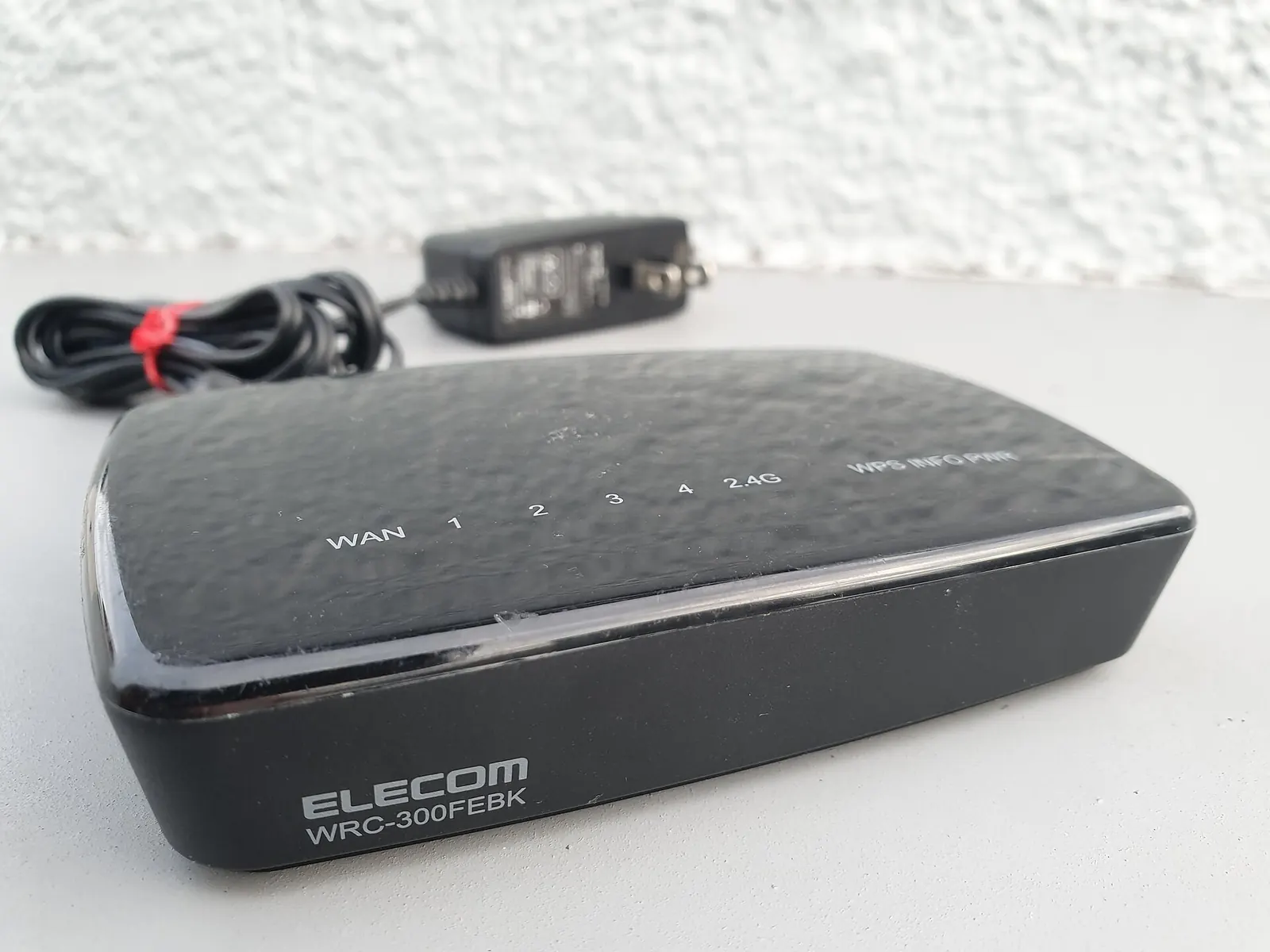
When Wi-Fi is slow or drops
- Restart the router and the phone. It fixes more problems than anything else.
- Distance and walls: thick walls, floors and mirrors block Wi-Fi. If one room is always bad, a mesh system or a second access point helps more than a "booster" plug.
- 2.4 GHz or 5 GHz: 5 GHz is faster but reaches less far. Many routers show two networks; use 5 GHz near the router and 2.4 GHz further away.
- Forget and rejoin: Settings → Wi-Fi → the network → Forget, then connect again with the password.
- Reset network settings if nothing else works. It removes saved Wi-Fi networks and Bluetooth pairings, not your data.
Public Wi-Fi
Most websites and apps now use encrypted connections, so public Wi-Fi is much safer than it was. Still, avoid networks with odd names you weren't given by the venue, and don't install anything a Wi-Fi login page asks you to.
Make mobile data last
- See what uses it: Settings → Network → Data usage (Android) or Settings → Mobile/Cellular (iPhone) lists data use per app.
- Video is the big one: an hour of HD video uses about 1.5–3 GB, standard quality about 0.5–1 GB. Set streaming apps to a lower quality on mobile data.
- Download over Wi-Fi: let music, podcasts, maps and series download at home.
- Turn off auto-play of videos in social media apps on mobile data.
- Data saver: Android's Data Saver and iPhone's Low Data Mode limit background use.
- Wi-Fi Assist / adaptive connectivity switches to mobile data when Wi-Fi is weak. Useful, but it can use data without you noticing.
Not sure how big a plan you need? Try the data usage calculator.